原文件来源: How to Set Up SSH Keys (Passwordless Login) — SamNet Learn
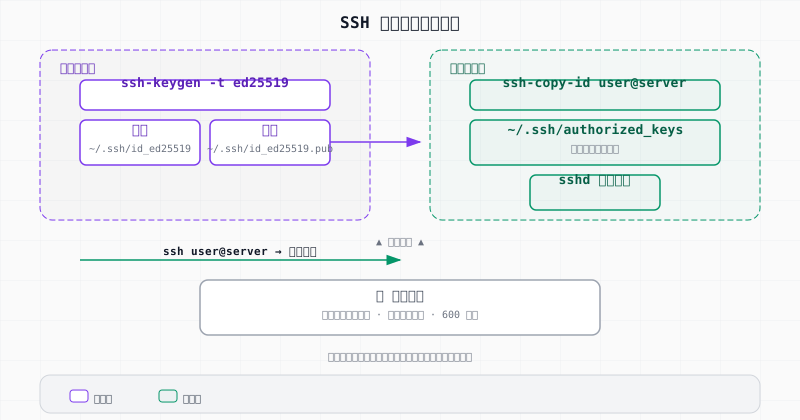
先决条件
- 一台可以 SSH 访问的服务器
- 本地电脑上有终端可用
简答: 在本地电脑上运行
ssh-keygen -t ed25519,然后ssh-copy-id user@server把密钥复制到服务器。之后ssh user@server即可免密登录。在/etc/ssh/sshd_config中设置PasswordAuthentication no来禁用密码登录。
需要 VPS 吗? Vultr(免费额度)、DigitalOcean(200 美元免费额度)或 RackNerd(价格实惠的年度套餐)。
为什么用 SSH 密钥?
| 密码 | SSH 密钥 | |
|---|---|---|
| 安全性 | 可被暴力破解 | 几乎不可能破解 |
| 便利性 | 每次都要输入密码 | 自动登录 |
| 自动化 | 无法安全地自动化 | 脚本可以使用密钥 |
| 最佳实践 | 服务器上不推荐使用 | 行业标准 |
第一步:生成密钥对
在你的本地电脑上(不是服务器):
bash
ssh-keygen -t ed25519 -C "your@email.com"-t ed25519— 现代安全算法(推荐,优于 RSA)-C— 注释,用于标识密钥
它会询问:
text
Enter file in which to save the key (/home/you/.ssh/id_ed25519):按回车接受默认位置。
text
Enter passphrase (empty for no passphrase):可选但建议设置 — 为密钥本身添加密码。即使有人窃取了你的密钥文件,仍需要密码短语才能使用。
这会创建两个文件:
| 文件 | 是什么 | 能分享吗? |
|---|---|---|
~/.ssh/id_ed25519 | 私钥 | 绝对不要分享 |
~/.ssh/id_ed25519.pub | 公钥 | 复制到服务器 |
如需使用 RSA(旧服务器)
bash
ssh-keygen -t rsa -b 4096 -C "your@email.com"第二步:将密钥复制到服务器
方法一:ssh-copy-id(最简单)
bash
ssh-copy-id user@your-server-ip最后一次输入密码。它会将公钥复制到服务器的 ~/.ssh/authorized_keys 文件。
方法二:手动复制
如果 ssh-copy-id 不可用:
bash
# 查看你的公钥
cat ~/.ssh/id_ed25519.pub

# 用密码 SSH 登录服务器
ssh user@your-server-ip

# 在服务器上添加密钥
mkdir -p ~/.ssh
chmod 700 ~/.ssh
echo "此处粘贴你的公钥内容" >> ~/.ssh/authorized_keys
chmod 600 ~/.ssh/authorized_keys
方法三:Windows(PowerShell)
powershell
# 生成密钥(如果还没生成)
ssh-keygen -t ed25519

# 复制密钥到服务器
type $env:USERPROFILE\.ssh\id_ed25519.pub | ssh user@server "mkdir -p ~/.ssh && cat >> ~/.ssh/authorized_keys && chmod 600 ~/.ssh/authorized_keys"
第三步:测试
bash
ssh user@your-server-ip你应该无需输入密码即可登录。如果仍要求输入密码,请检查权限:
bash
# 在服务器上执行
chmod 700 ~/.ssh
chmod 600 ~/.ssh/authorized_keys
chown -R $USER:$USER ~/.ssh
第四步:禁用密码登录(建议)
密钥认证可正常使用后,禁用密码登录以防御暴力破解攻击:
bash
# 在服务器上编辑 SSH 配置
sudo nano /etc/ssh/sshd_config
修改以下设置:
text
PasswordAuthentication no
PubkeyAuthentication yes
ChallengeResponseAuthentication no
重启 SSH:
bash
sudo systemctl restart sshd⚠️ 保持当前 SSH 会话不要断开,用新终端窗口测试。如果出问题了,你还可以通过现有会话修复。
多密钥管理
不同服务器使用不同密钥
bash
# 生成工作用密钥
ssh-keygen -t ed25519 -f ~/.ssh/id_work -C "work@company.com"

# 生成个人用密钥
ssh-keygen -t ed25519 -f ~/.ssh/id_personal -C "personal@email.com"
在 ~/.ssh/config 中配置:
text
Host work-server
    HostName 10.0.0.5
    User admin
    IdentityFile ~/.ssh/id_work

Host personal-vps
    HostName 203.0.113.50
    User sam
IdentityFile ~/.ssh/id_personal现在只需:ssh work-server 或 ssh personal-vps
将密钥添加到 SSH Agent
避免每次都输入密码短语:
bash
# 启动 agent
eval "$(ssh-agent -s)"

# 添加你的密钥
ssh-add ~/.ssh/id_ed25519

# 查看已加载的密钥
ssh-add -l
故障排除
| 问题 | 解决方法 |
|---|---|
| 仍然要求输入密码 | 检查权限:chmod 700 ~/.ssh 和 chmod 600 ~/.ssh/authorized_keys |
| Permission denied (publickey) | 密钥未添加到服务器,或用户错误。检查服务器上的 ~/.ssh/authorized_keys |
| Agent refused connection | 运行 eval "$(ssh-agent -s)" 然后 ssh-add |
| 密钥文件权限太宽松 | chmod 600 ~/.ssh/id_ed25519 — SSH 拒绝权限过于宽松的密钥 |
| 使用了错误的密钥 | 指定密钥:ssh -i ~/.ssh/id_specific user@server |
| 禁用密码后被锁定 | 使用服务器控制台(云服务商的网页终端)重新启用 |
bash
# 调试 SSH 连接
ssh -v user@server              # 详细模式 — 显示尝试了哪个密钥
ssh -vvv user@server            # 超详细模式
参见
📖 原文件来源: How to Set Up SSH Keys (Passwordless Login) by SamNet Learn.